
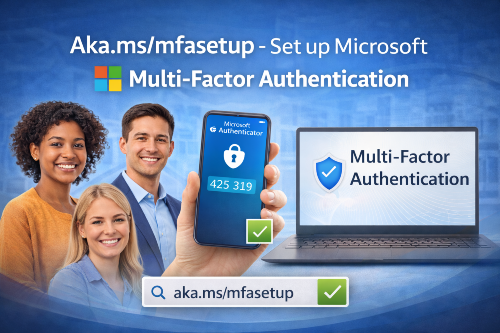
Online security is more important than ever, especially when accessing work, school, or personal accounts. To protect users from unauthorized access, Microsoft requires Multi-Factor Authentication (MFA) for many services. If you’ve been asked to visit Aka.ms/mfasetup, it means you need to complete or update your MFA settings.
This guide explains what Aka.ms/mfasetup is, why it’s required, and how to complete the MFA setup step by step. Whether you’re a first-time user or updating security settings, this article will help you finish the process smoothly.
What Is Multi-Factor Authentication?
Aka.ms/mfasetup is an official Microsoft shortcut link that takes users directly to the Microsoft MFA setup page. This page allows you to configure additional security verification methods for your account.
MFA adds an extra layer of protection by requiring something you know (your password) and something you have (a phone, app, or security code). Even if someone gets your password, they won’t be able to access your account without the second verification step.
Why Microsoft Requires MFA Setup
Microsoft uses MFA to protect accounts from:
- Phishing attacks
- Password theft
- Unauthorized logins
- Data breaches
Many organizations require MFA for:
- Microsoft 365 accounts
- Work or school email
- Remote access and VPNs
- Cloud services and admin portals
Setting up MFA through Aka.ms/mfasetup helps ensure your account remains secure.
What You Need Before Visiting Aka.ms/mfasetup
Before starting the setup, make sure you have:
- Your Microsoft work, school, or personal account login details
- A smartphone (recommended for authenticator apps)
- Internet access
- A few uninterrupted minutes to complete setup
Having everything ready will make the process quick and frustration-free.
Step-by-Step: How to Set Up MFA Using Aka.ms/mfasetup
Step 1: Go to Aka.ms/mfasetup
Open a web browser on your computer or mobile device and enter Aka.ms/mfasetup in the address bar.
You’ll be redirected to the Microsoft security setup page.
Step 2: Sign In to Your Microsoft Account
Enter your email address and password associated with your Microsoft account.
This may be a work, school, or personal Microsoft login.
Step 3: Choose Your Security Verification Method
Microsoft will prompt you to select a verification method. Common options include:
- Authenticator app (recommended)
- Text message (SMS)
- Phone call
- Backup codes
The Microsoft Authenticator app is the most secure and commonly recommended option.
Step 4: Set Up the Microsoft Authenticator App
If you choose the authenticator app:
- Install the Microsoft Authenticator app on your phone
- Select Add account in the app
- Scan the QR code displayed on your screen
- Approve the test notification
This links your phone securely to your Microsoft account.
Step 5: Add Backup Verification Options
Microsoft may ask you to add a second method, such as:
- A phone number
- An alternate email
- Backup codes
This ensures access if your primary method is unavailable.
Step 6: Complete the Setup
Once verification is successful, you’ll see a confirmation message.
Your MFA setup is now complete, and future logins will require an extra verification step.
What Happens After MFA Is Enabled?
After completing setup via Aka.ms/mfasetup:
- You’ll enter your password as usual
- Microsoft will request a second verification step
- You’ll approve the sign-in using your chosen method
This significantly reduces the risk of unauthorized access.
Common Aka.ms/mfasetup Issues and Fixes
Page Not Loading
- Check your internet connection
- Try a different browser
- Clear browser cache and cookies
Verification Code Not Working
- Make sure your device time is set correctly
- Request a new code
- Use an alternate verification method if available
Lost or New Phone
- Use backup methods to sign in
- Update your MFA settings after logging in
- Contact your organization’s IT support if locked out
Tips for Managing Microsoft MFA Securely
- Always keep backup verification options updated
- Do not approve MFA requests you didn’t initiate
- Use the authenticator app instead of SMS when possible
- Update your phone number if it changes
These steps help maintain strong, reliable account security.
Do You Need to Use Aka.ms/mfasetup Again?
You may need to revisit Aka.ms/mfasetup if:
- You change your phone or device
- Your organization updates security requirements
- You want to add or remove verification methods
Updating your MFA settings ensures uninterrupted access.
Frequently Asked Questions
Is Aka.ms/mfasetup safe?
Yes. It’s an official Microsoft link used for secure account setup.
Can I skip MFA setup?
In most cases, no. Many organizations require MFA to protect accounts.
Does MFA cost anything?
No. MFA setup through Microsoft is free.
Final Thoughts
Setting up multi-factor authentication using Aka.ms/mfasetup is one of the simplest and most effective ways to protect your Microsoft account. While it adds an extra step during login, it dramatically improves security and reduces the risk of account compromise.
By following the steps outlined above and keeping your verification methods up to date, you can enjoy safer access to your Microsoft services with confidence.